2,970 words. Estimated reading time: 14 min.
MDX components
Auto TL;DR
At a Glance
This long page covers these main areas. The list is generated from the article headings, so it updates with every handbook rebuild.
There are some nifty MDX components available for use in Markdown content. These components are included globally, so you don't need to do anything special to use them (like renaming .md to .mdx or manually importing them at the top of the file).
Images
Product screenshots
The `` component encapsulates an image with a border and background. It's useful since the app's background matches the website background, and without using this component, it can be hard to differentiate between the screenshot and normal page content. It also optionally supports dark mode screenshots.
You use it by passing image URLs to the imageLight and imageDark props like this:
<ProductScreenshot
imageLight="https://res.cloudinary.com/dmukukwp6/image/upload/posthog.com/contents/handbook/images/tutorials/limit-session-recordings/sampling-config-light.png"
imageDark="https://res.cloudinary.com/dmukukwp6/image/upload/posthog.com/contents/handbook/images/tutorials/limit-session-recordings/sampling-config-dark.png"
alt="Sampling config shown set to 100% i.e. no sampling"
classes="rounded"
/>
Optionally pass zoom={false} if you don't want the image to be zoomable, otherwise it will be zoomable by default.
_Note: If you don't have a dark image, just leave out the imageDark prop and the light screenshot will be used for both color modes._
Annotated product screenshots
The `` component overlays interactive callouts on top of an image. Instead of baking dots or numbers into the image file, the markers are live DOM positioned with percentage coordinates, so they stay anchored and scale when the image resizes (and they theme correctly in light/dark mode).
There are two styles:
numbered— numbered badges paired with a "key" legend. Hovering a key row grows the matching marker, and vice versa.dots— pulsing, clickable dots that open a popover with the callout's title and description.
The builder
Don't hand-write coordinates. Moderators can open the visual builder at /image-annotator (also under the account menu → Moderator tools → Image annotation). Pick a product screenshot (or paste a Cloudinary URL), click to drop markers, label them, then copy paste-ready code. It outputs code for both destinations below.
`` (recommended)
The simplest entry point. It resolves the image (light + dark) and an optional named annotation set straight from a product hook, so the image stays in sync if it's ever updated. Because the API is namespaced (ImageAnnotations.FromProduct), import it once at the top of your .mdx file — same as Tab:
<!-- prettier-ignore -->
<!-- prettier-ignore -->
| Prop | Type | Description | | --- | --- | --- | | product | string | Product handle, e.g. "session_replay". | | screenshot | string | Key in that product's screenshots object, e.g. "overview". | | title | ReactNode | Section heading. In split it sits in the left column next to the image. | | set | string | Name of an annotation set stored on the screenshot (screenshots[screenshot].annotations[set]). | | annotations | Annotation[] | Inline annotations — overrides set. | | type | 'dots' \| 'numbered' | Overrides the set's type (defaults to the set's type, then numbered). | | showKey | boolean | Force the key on/off (defaults to on for numbered). | | layout | 'stacked' \| 'split' | stacked (default) puts the image above the key. split is a responsive two-column layout. | | children | ReactNode | Left-column content (your prose) when layout="split". | | alt, imgClassName, className, keyTitle | string | Presentation overrides. |
Split layout: pass layout="split" and put your description as children to get a responsive two-column section (uses @container/reader-content queries). It stacks as description → image → key on mobile, and becomes description top-left / key bottom-left / image right on wider screens.
<!-- prettier-ignore -->
Every session replay comes with a browser-like DevTools suite synced to the timeline.

Watch session replays
Storing annotation sets in a hook: add an annotations map to a screenshot in src/hooks/productData/<product>.tsx. Multiple named sets are supported, since the same image may be annotated differently in different places. Coordinates are percentages (0–100) — copy them from the builder.
<!-- prettier-ignore -->
screenshots: {
overview: {
src: 'https://res.cloudinary.com/dmukukwp6/image/upload/replay_screenshot.jpg',
// srcDark: '…', // optional — falls back to src when omitted
alt: 'Session replay screenshot',
annotations: {
'dev-tools': {
type: 'numbered',
items: [
{ x: 27.2, y: 9.8, title: 'Debug views' },
{ x: 48.9, y: 7.8, title: 'DevTools' },
],
},
},
},
}
Inline in MDX
If the image isn't in a hook (or you want a one-off), define the annotations inline. MDX only allows ESM, so use export const — a bare const won't work. For the image, you can still reference a hook via product + screenshot (keeps it in sync), or pass a literal src/srcDark.
<!-- prettier-ignore -->
export const annotations = [
{ x: 27.2, y: 9.8, title: 'Debug views' },
{ x: 48.9, y: 7.8, title: 'DevTools', description: 'Console, network, and errors synced to the timeline' },
]
Splitting the image and key: because ` and read from the wrapping <ImageAnnotations>` provider, you can render them in different spots with other content in between.
<!-- prettier-ignore -->
Any markdown or other components can go in between…
_Note: srcDark is optional everywhere — if a dark variant isn't provided, the regular src is shown in both color modes._
Image slider
You can create a slider or carousel of images by wrapping them in the <ImageSlider> component like this:
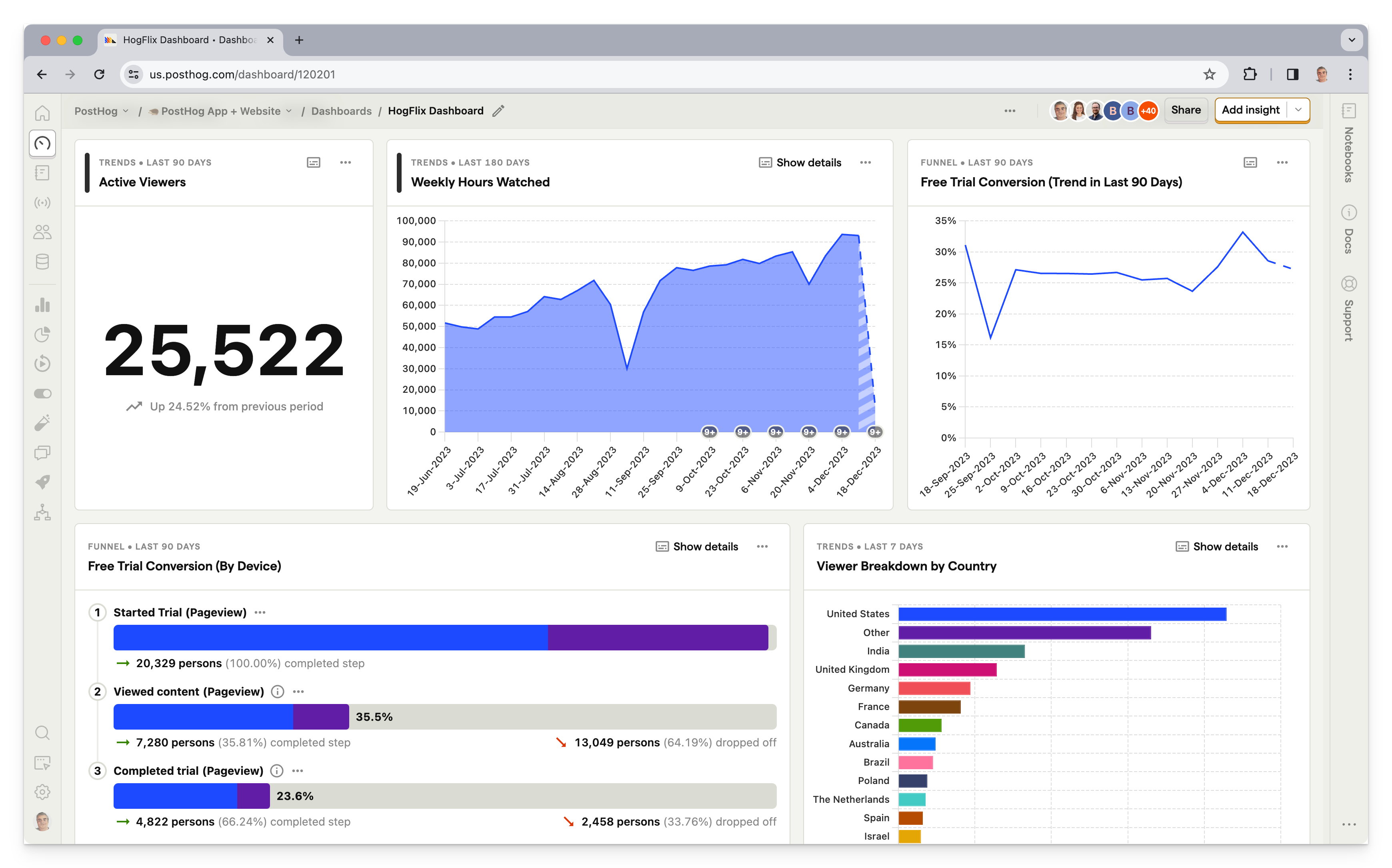
See an example in our open-source analytics tools post.
Videos
Th `` component works the same as product screenshots (above) for videos uploaded to Cloudinary but supports light and dark videos.
- Import the video(s) at the top of the post (directly following the MDX file's frontmatter and dashes):
<!-- prettier-ignore -->
---
export const NewFunnelLight = "https://res.cloudinary.com/dmukukwp6/video/upload/posthog.com/contents/handbook/images/docs/user-guides/funnels/new-funnel.mp4"
export const NewFunnelDark = "https://res.cloudinary.com/dmukukwp6/video/upload/posthog.com/contents/handbook/images/docs/user-guides/funnels/new-funnel-dark.mp4"
- Use the component wherever you want the video(s) to appear.
<!-- prettier-ignore -->
<ProductVideo
videoLight={NewFunnelLight}
videoDark={NewFunnelDark}
classes="rounded"
/>
_Note: If you don't have a dark video, just leave out the videoDark prop and the light video will be used for both color modes._
Embedding Wistia videos
This can be used in articles like tutorials or blog posts for longer-form videos (where the asset exceeds 20 MB and can't be uploaded to Cloudinary).
Embedding YouTube videos
While not an MDX component, a reminder that when embedding a YouTube video, you should do two things:
- Use the
-nocookievariant of the YouTube URL. eg:
https://www.youtube-nocookie.com/embed/{VIDEO_ID}- Add the
allowfullscreenattribute to the iframe so users have the option to watch the video in fullscreen (useful for reading code snippets).
Example:
<iframe
    src="https://www.youtube-nocookie.com/embed/1FZji2L-LmM"
    className="rounded shadow-xl"
/>
Code blocks
The PostHog website has a custom code block component that comes with a number of useful features built-in:
Basic codeblock
Codeblocks in PostHog are created by enclosing your snippet using three backticks (\\\`) or three tildes (\~\~\~), as shown below:
{
"name": "Max, Hedgehog in Residence",
"age": 2
}
This will produce the following codeblock:
{
"name": "Max, Hedgehog in Residence",
"age": 2
}Adding syntax highlighting
Syntax highlighting can be added by specifying a language for the codeblock, which is done by appending the name of the language directly after the opening backticks or tildes as shown below.
{ "name": "Max, Hedgehog in Residence", "age": 2 }
This will produce the following output:
{
"name": "Max, Hedgehog in Residence",
"age": 2
}Using tabs
You can use the `` component to create tabs in your code blocks. This is useful for showing multiple code snippets or examples in a single code block.
<Tab.Group tabs={[ 'Preview', 'Markdown']}> Preview Markdown
console.log('Hello, world!')console.log('Hello, world!')
Supported languages
Here is a list of all the languages that are supported in codeblocks:
Frontend
| | | | ----------------- | -------------- | | HTML | html | | CSS / SCSS / LESS | css / less | | JavaScript | js | | JSX | jsx | | TypeScript | ts | | TSX | tsx | | Swift | swift | | Dart | dart | | Objective-C | objectivec |
Backend
| | | | ------- | ----------- | | Node.js | node | | Elixir | elixir | | Golang | go | | Java | java | | PHP | php | | Ruby | ruby | | Python | python | | C / C++ | c / cpp |
Misc.
| | | | -------- | ----------------- | | Terminal | bash or shell | | JSON | json | | XML | xml | | SQL | sql | | GraphQL | graphql | | Markdown | markdown | | MDX | mdx | | YAML | yaml | | Git | git |
Note: If you want syntax highlighting for a snippet in another language, feel free to add your language to the imports in languages.tsx and open a PR.
Multi-language code blocks
You can use the <MultiLanguage> component to show code blocks in multiple languages.
<Tab.Group tabs={[ 'Preview', 'Markdown']}> Preview Markdown
console.log('Hello, world!')print('Hello, world!')console.log('Hello, world!')
print('Hello, world!')
Multiple code snippets in one block
With PostHog's MultiLanguage component, it's possible to group multiple code snippets together into a single block.
console.log('Hello world!')
<div>Hello world!</div>
Note: Make sure to include empty lines between all your code snippets, as well as above and below the
MultiLanguagetag
This will render the following codeblock:
console.log('Hello world!')<div>Hello world!</div>Specifying which file a snippet is from
You can specify a filename that a code snippet belongs to using the file parameter, which will be displayed in the top bar of the block.
cloud: 'aws'
ingress:
hostname: <your-hostname>
nginx:
enabled: true
cert-manager:
enabled: true
Note: Make sure not to surround your filename in quotes. Each parameter-value pair is delimited by spaces.
This produces the following codeblock:
cloud: 'aws'
ingress:
hostname: <your-hostname>
nginx:
enabled: true
cert-manager:
enabled: trueCode highlighting
Especially in long tutorials, you can highlight the important differences between steps using highlighting comments. It's much easier to read visual diffs than reading through the code block line by line.
| Comment | Effect | Usage | | -------------- | ---------------- | ---------------------------------------- | | // + | Green highlight | Represents additions in diffs | | // - | Red highlight | Represents removals in diffs | | // HIGHLIGHT | Yellow highlight | General emphasis without special meaning |
<Tab.Group tabs={[ 'Preview', 'Markdown']}> Preview Markdown
const a = 1
const b = 2
const c = a + b // +

console.log(a + b) // -
console.log(c) // +

console.log('end') // HIGHLIGHT
const a = 1 const b = 2 const c = a + b // +
console.log(a + b) // - console.log(c) // +
console.log('end') // HIGHLIGHT
Collapsed code blocks
In some cases, such as large nested config files, you need readers to focus on a specific part of the code block while maintaining the context. You can do this by adding focusOnLines= to the code block. This collapses the code block and only shows the lines of code you specify.
<Tab.Group tabs={[ 'Preview', 'Markdown']}> Preview Markdown
{
"projects": {
"my-app": {
"architect": {
"build": {
"builder": "@angular-devkit/build-angular:application",
"options": {
"sourceMap": {
"scripts": true, // +
"styles": true, // +
"hidden": true, // +
"vendor": true // +
}
}
}
}
}
}
}
{ "projects": { "my-app": { "architect": { "build": { "builder": "@angular-devkit/build-angular:application", "options": { "sourceMap": { "scripts": true, // + "styles": true, // + "hidden": true, // + "vendor": true // + } } } } } } }
Mermaid diagrams
Code blocks can also be used to show mermaid UML diagrams. When using these diagrams, make sure to include a text description of the diagram afterwards for accessibility and LLMs.
<Tab.Group tabs={[ 'Preview', 'Markdown']}> Preview Markdown
sequenceDiagram
Alice->John: Hello John, how are you?
John-->Alice: Great!
Alice->John: See you later!
sequenceDiagram Alice->John: Hello John, how are you? John-->Alice: Great! Alice->John: See you later!
Product list
Use ` to render a list of products sourced from useProduct hooks. It links each product to /{slug}` by default using the product's icon, color, and name.
Auto-source from a product data field (e.g. every product where wizardSupport is set):
<!-- prettier-ignore -->
<ProductList
    sourceField="wizardSupport"
    sourceValues={[true, { value: "In development", color: "red" }, { value: "Coming soon", color: "yellow" }]}
/>
<ProductList className="grid gap-4 grid-cols-2 not-prose" sourceField="wizardSupport" sourceValues={[true, { value: "In development", color: "red" }, { value: "Coming soon", color: "yellow" }]} />
Products are grouped in sourceValues order. Plain values (true, "some string") filter without an indicator. Object values ({ value, color }) also render a colored dot with tooltip text.
Manual list of products:
<!-- prettier-ignore -->
<ProductList className="grid gap-4 grid-cols-2 not-prose" products={["product_analytics", "web_analytics", "session_replay"]} />
Manual list with field-based filtering and indicators:
<!-- prettier-ignore -->
<ProductList
    products={["product_analytics", "web_analytics", "feature_flags", 'ai_observability']}
    sourceField="wizardSupport"
    sourceValues={[true, { value: "Coming soon", color: "yellow" }]}
/>
<ProductList className="grid gap-4 grid-cols-2 not-prose" products={["product_analytics", "web_analytics", "feature_flags", 'ai_observability']} sourceField="wizardSupport" sourceValues={[true, { value: "Coming soon", color: "yellow" }]} />
Only the products whose wizardSupport value matches a sourceValues entry will render. Other props: urlPrefix (default /), className, itemClassName, iconSize.
Wizard command
Use `` to render a copyable install button for the PostHog wizard CLI. Clicking the button copies the command to the clipboard and shows a toast notification.
The displayed command is always the clean npx @posthog/wizard …; the copied command always pins -y and @latest. The wizard reads the user's region off their auth token, so no --region flag is added. ` is a thin alias for `.
Props:
| Prop | Type | Default | Description | | --- | --- | --- | --- | | command | string | '' | Subcommand appended after @posthog/wizard (e.g. mcp add) | | selfDriving | boolean | false | Shorthand for command="self-driving" | | slim | boolean | false | Hides the "Learn more" link below the button | | variant | 'default' \| 'bordered' | 'default' | Bordered button style | | className | string | '' | Additional classes for the button element |
Slim mode (button only, no "Learn more" link):
<!-- prettier-ignore -->
Call to action
Adding `` to any article will add this simple CTA:
Don't overuse it, but it's useful for high intent pages, like comparisons.
Feature comparison tables
When comparing features between two or more products, use the ` component which sources data from the src/hooks/competitorData/` directory and lets you compare specific features across multiple competitors.
<!-- prettier-ignore -->
<ProductComparisonTable
competitors={['posthog', 'amplitude']}
rows={['product_analytics']}
/>
Read more in the product & feature comparisons handbook page.
Captions
You can add captions below images using the following code:
Add you caption copy hereHere's an example of what it looks like:
Image: PostHog webshare pricing experiment
Adding the 'Buy Now' call to action and adjusting the text enabled Webshare to boost conversion by 26%
Customer quotes
Add a styled quote component using the following code:
Product-specific quote
<!-- prettier-ignore -->
<OSQuote
customer="significa"
author="tomas_gouveia"
product="web_analytics"
/>
Generic quote
<!-- prettier-ignore -->
<OSQuote
customer="lovable"
author="viktor_eriksson"
quote={0}
/>
We mainly use them in customer stories and some product pages.
Quotes are sourced from the useCustomers hook and can reference product-specific quotes or general quotes by someone at a company. Be sure to add the customer's information to the useCustomers hook in src/hooks/useCustomers.tsx.
Example
<!-- prettier-ignore -->
quotes: {
viktor_eriksson: {
name: 'Viktor Eriksson',
role: 'Software Engineer',
image: {
thumb: 'https://res.cloudinary.com/dmukukwp6/image/upload/q_auto,f_auto/viktor_00c779a706.jpg',
},
quotes: [
"PostHog is super cool because it is such a broad platform. If you're building a new product or at a startup, it's a no-brainer to use PostHog. It's the only all-in -one platform like it for developers.",
],
},
},
Collapsible sections
The combination of <details> and <summary> components enables you to add a collapsible section to your page. Useful for FAQs or details not relevant to the main content.
<details>
<summary>Can I specify some events to be identified and others to be anonymous for the same users?</summary>

Not if you already identified them. Once a user is identified, all _future_ events for that user are associated with
their person profile and are captured as identified events.
</details>
Tabs
Tabs enable you to display different content in a single section. We often use them to show different code examples for different languages, like in installation pages.
To use them:
- Import the
Tabcomponent. - Set up
Tab.Group,Tab.List, andTab.Panelfor each tab you want to display. Thetabsprop inTab.Groupshould be an array of strings, one for each tab. This enables you to link to each tab by its name. - Add the content for each tab in the
Tab.Panelcomponents. You should use snippets for readability, maintainability, and to avoid duplication, but you can use multiple snippets in a single tab.
For example, here's how we can set up tabs using error tracking snippets:
Error tracking gives you multiple ways to control which exceptions are captured:

<!-- prettier-ignore -->
Before send
Suppression rules
Burst protection
You can default to a specific tab by passing the tab name in the query string like:
/docs/product-analytics/installation?tab=webLinks
Linking internally
Use Markdown's standard syntax for linking internally.
[Link text](/absolute-path/to/url)Be sure to use _relative links_ (exclude https://posthog.com) with _absolute paths_ (reference the root of the domain with a preceding /).
| | | | -------------------- | ------------------------------------------ | | Correct syntax | /absolute-path/to/url | | Incorrect syntax | https://posthog.com/absolute-path/to/url |
Open a new PostHog window
To open a link in a new window within the PostHog.com OS interface, use state={{ newWindow: true }} like:
<!-- prettier-ignore -->
Link textLinking externally
The ` component is used throughout the site, and is accessible within Markdown. (When used _internally_, it takes advantage of <Link to="https://www.gatsbyjs.com/docs/reference/built-in-components/gatsby-link/" external>Gatsby's ` features like prefetching and client-side navigation between routes).
While that doesn't apply here, using it comes with some handy parameters that you can see in action via the link above:
- Add
externalto a) open the link in a new tab, and b) add the _external link_ icon (for UX best practices if forcing a link to open in a new window) - If, for some reason, you need to hide the icon, use
externalNoIconinstead
Example:
click here
Private links
Sometimes we link to confidential information in our handbook. Since the handbook is public, it's useful to indicate when a link is private so visitors aren't confused as to why they can't access a URL (like a Slack link or private GitHub repo). Use the `` component for this. See an example (on our share options page.)
click here
Private links will always open in a new browser tab.
Mention a team member
Use this component to mention a team member in a post. It will link to their community profile and appears like this: Eli Kinsey
There's also a photo parameter which will inline their photo next to their name like this: Eli Kinsey
Mention a small team
Use this component to mention a small team in a post. It will link to their team page and appears like this:
The default version shows the team's mini crest and name in a bordered "chip" style. There's also a noMiniCrest parameter to omit the mini crest and border for inline usage like this:
Both versions will show the full team crest on hover. Clicking the tooltip will open the team page in a new window.
Embedded posts
You can embed what looks like ~~a Tweet~~ an X post using the <Tweet> component. It's used on the terms and privacy policy pages, but was componentized for use in blog posts to break up bullet points at the top of the post.
_Note: This does not actually embed an X post ; it's just styled to look like one._
Here's what a post looks like. It's designed to have a familiar look that makes it easy to scan.
If you show multiple posts in a row, they'll be connected by a vertical line to make it look like a thread.
Usage
Be sure to change the alert message which appears if you click one of the action buttons (reply, repost, like).
<!-- prettier-ignore -->
<Tweet
className="mx-auto"
alertMessage="Gen Z? Don't get distracted. You're here to read our exciting embedded post component."
>
If you show multiple posts in a row, they'll be connected by a vertical line to make it look like a thread.
You can optionally center the post with the mx-auto class (shown in the example code, but _not_ used in the preview above).